Your New MyMalls Dashboard, Explained

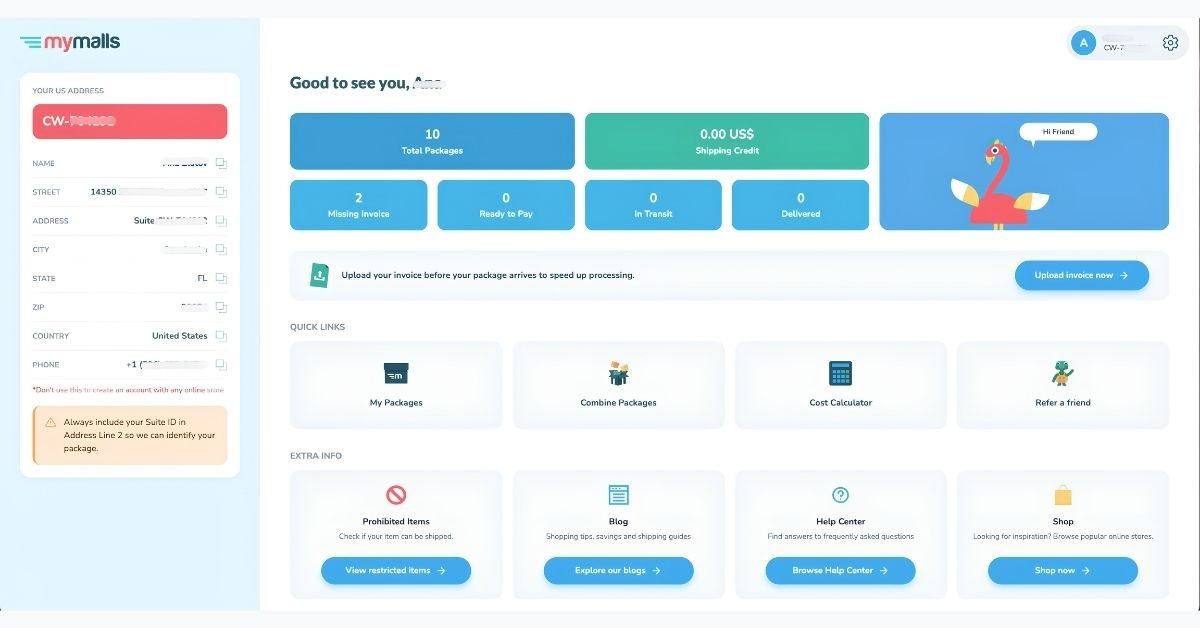
We redesigned it to make managing your packages simple, whether you're on your phone or computer. Your U.S. address is easier to find, package statuses are clearer, and the tools you use most are now just a tap away.
Here's what's new.
Why we changed it
You told us the old dashboard was hard to read on mobile, and that it wasn't always clear where to find your address or what stats like "Missing Invoice" actually meant. We listened. This redesign was built around three goals:
- We wanted every important piece of information to be visible right away.
- We wanted your U.S. address and Suite ID to always be easy to find and copy.
- We wanted the whole dashboard to feel just as clear on a phone as it does on a computer.
Your U.S. Address
Your MyMalls address now sits at the top of your dashboard, ready whenever you shop from any store that ships to the U.S. On desktop, it stays fixed in place as you scroll.
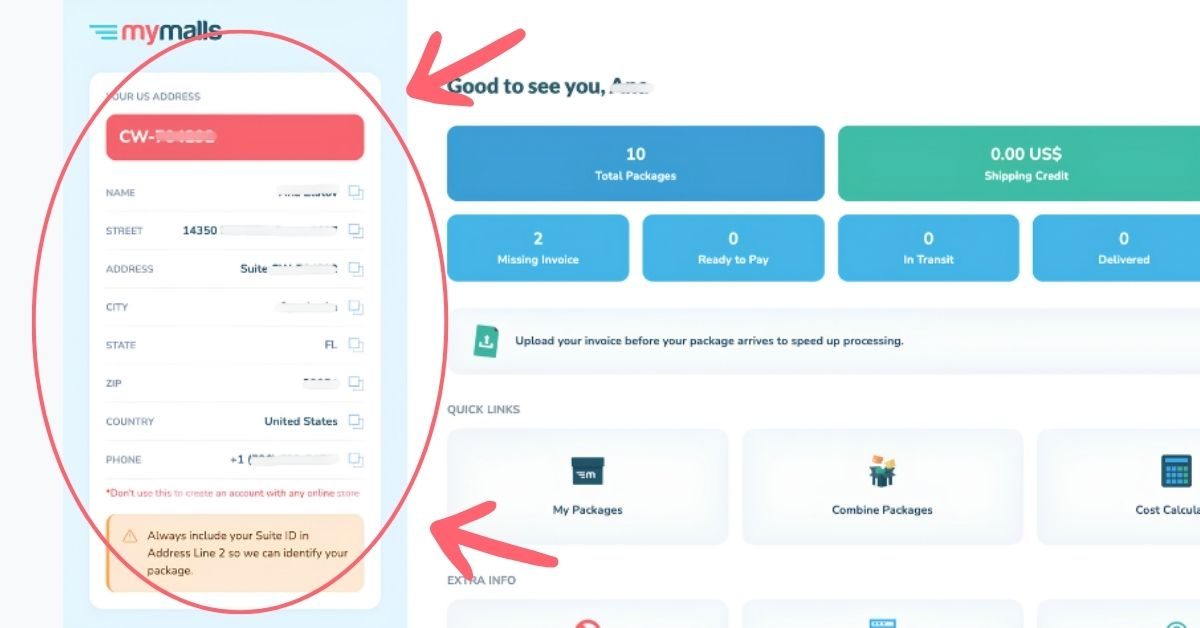
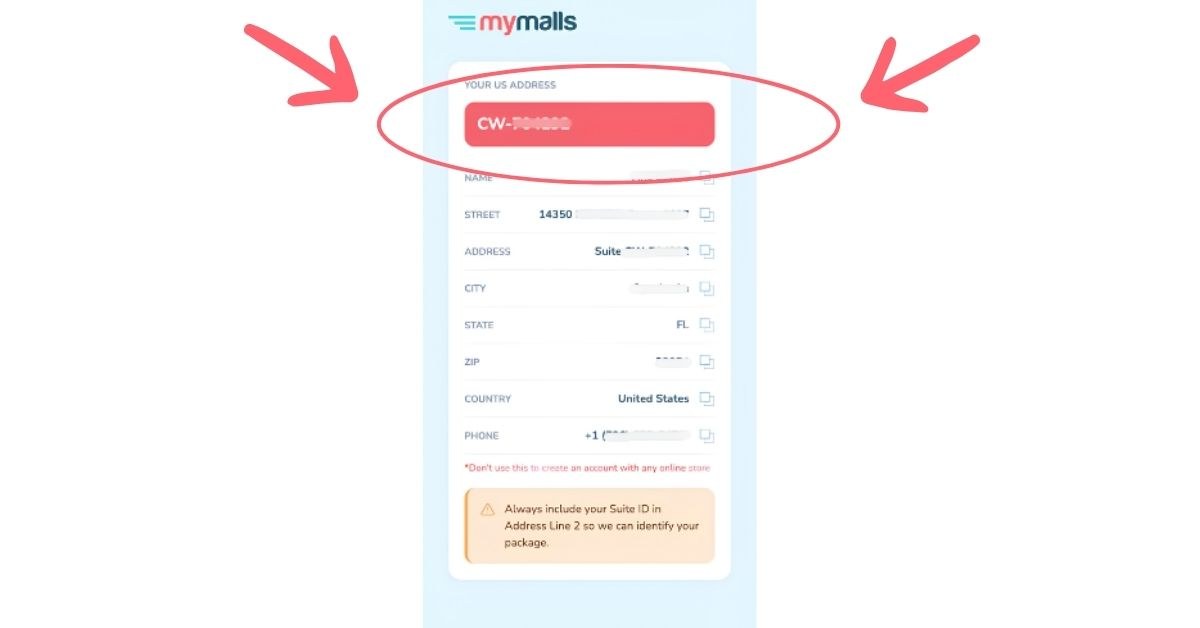
Your Suite ID matters most. It tells our warehouse a package belongs to you. Always check that it is included when you check out.
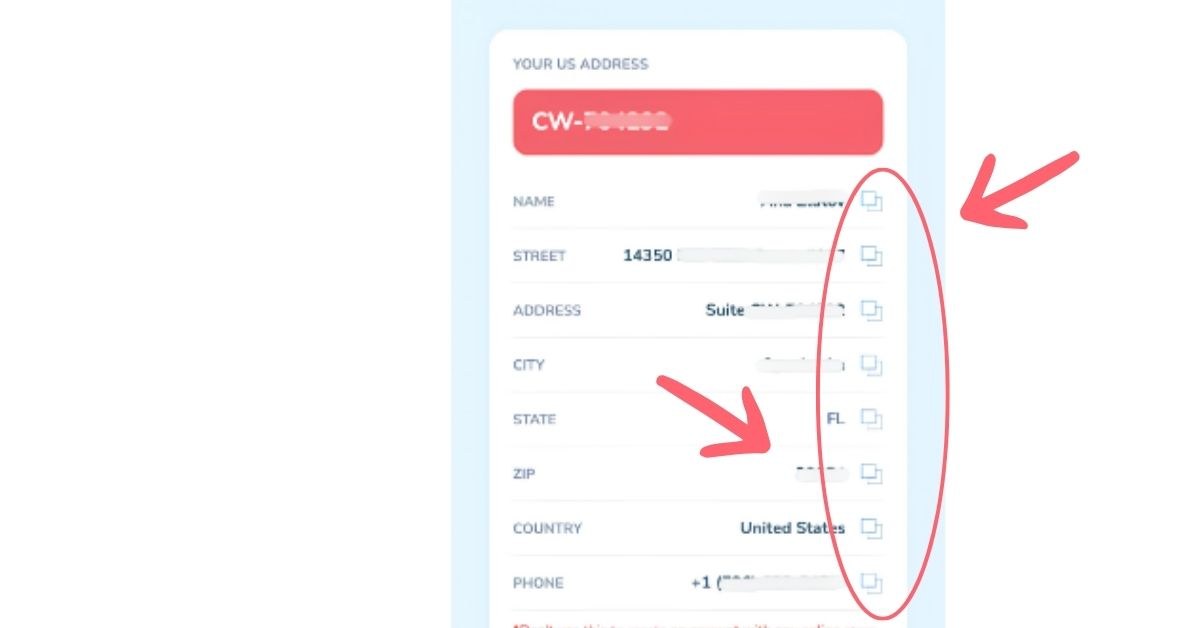
Need your address at checkout? Copy each field with one tap and paste it directly into the store's checkout form.
Track Every Package at a Glance
Next to your address, a row of cards shows exactly where your packages stand. You do not need to click anything to see it. Each card tracks a different stage of the shipping process, from the moment your package reaches our warehouse to the moment it lands at your front door.
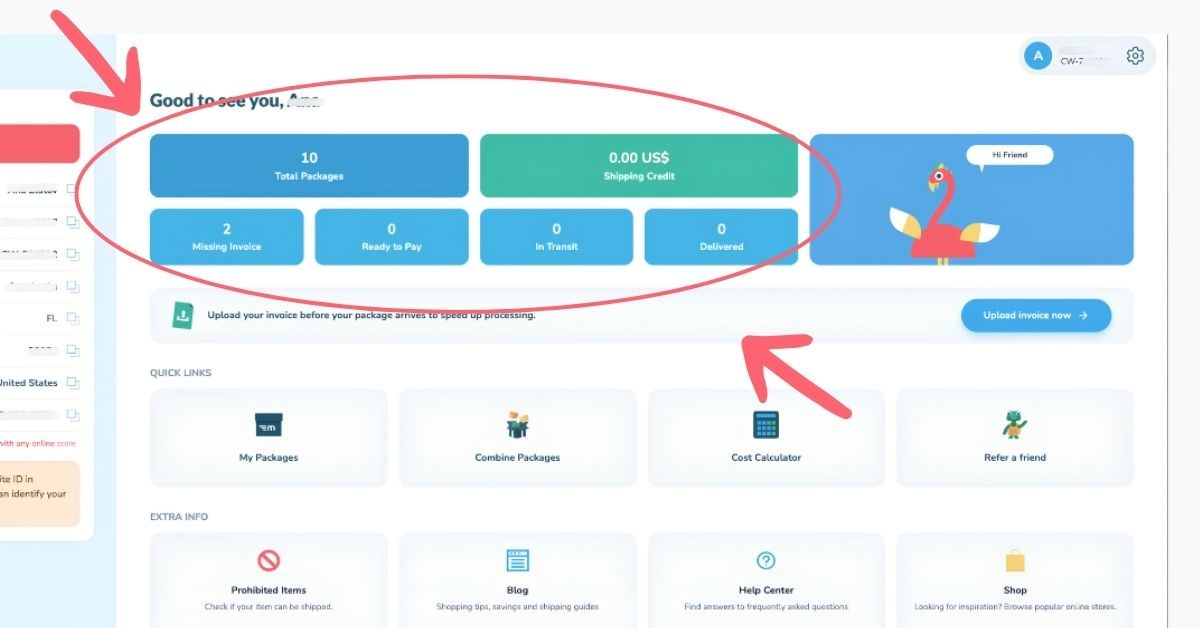
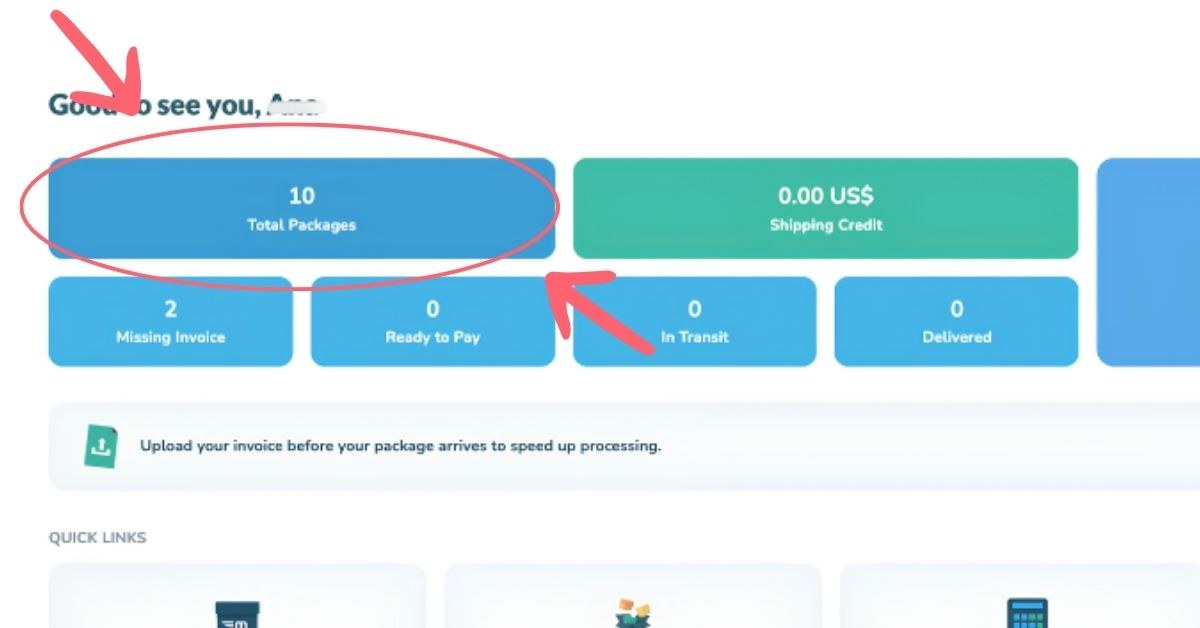
Total Packages: a running count of every package tied to your account, including ones you've received, archived, or discarded.
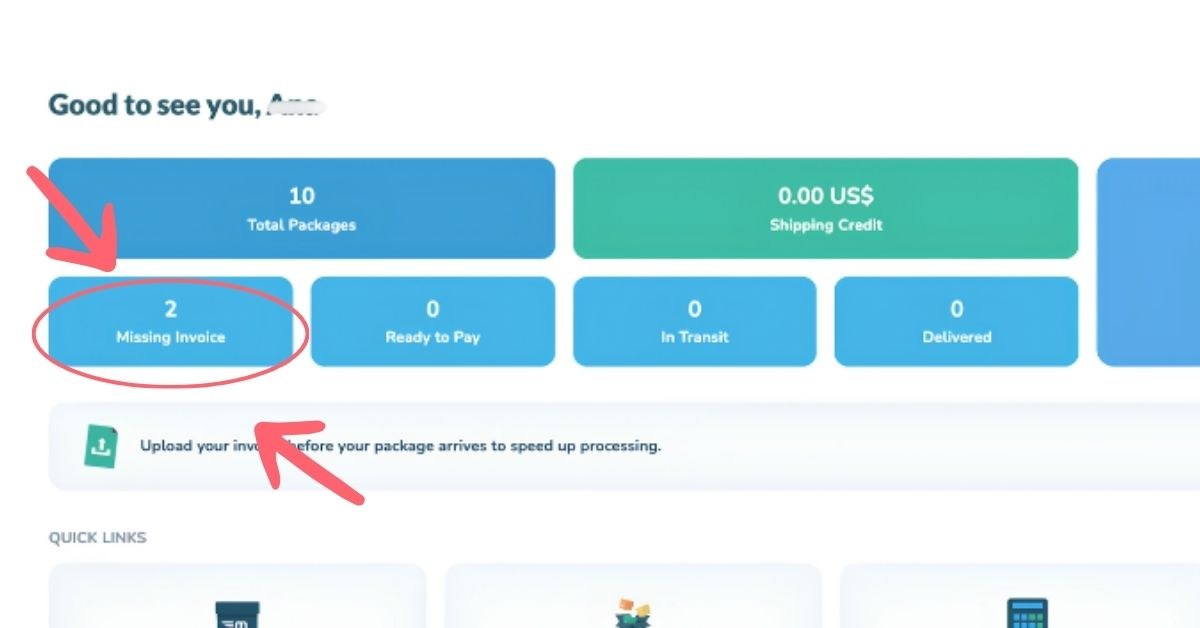
Missing Invoice: this card counts packages that still need an invoice uploaded before we can process them.
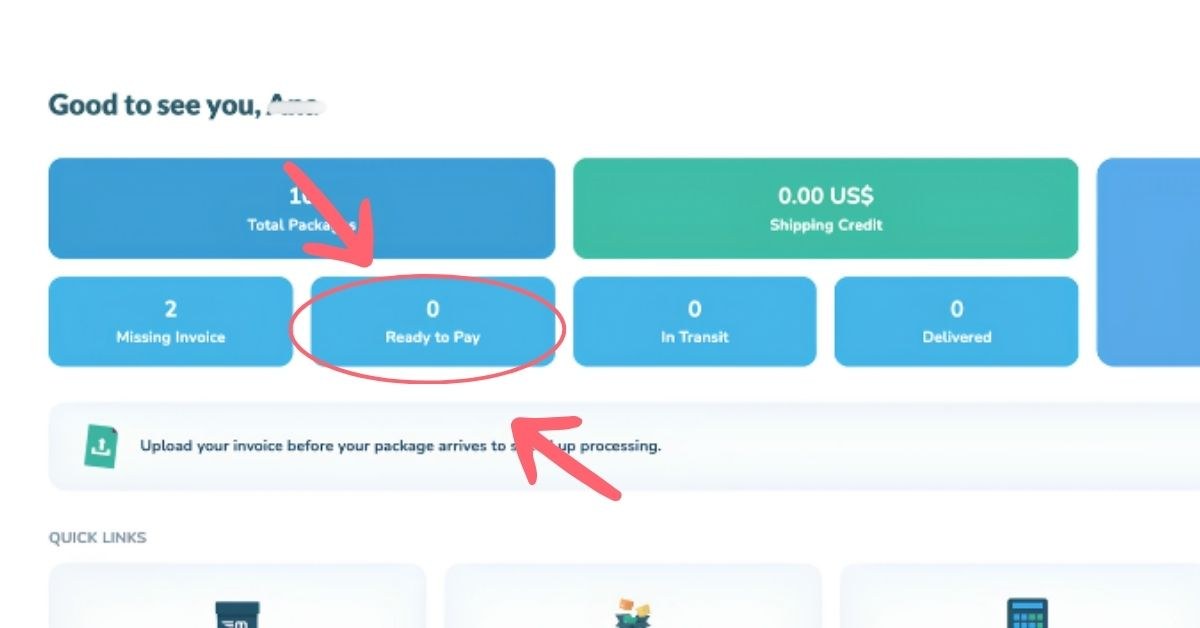
Ready to Pay: this card counts packages that our warehouse has already processed and that are waiting for you to pay shipping on.
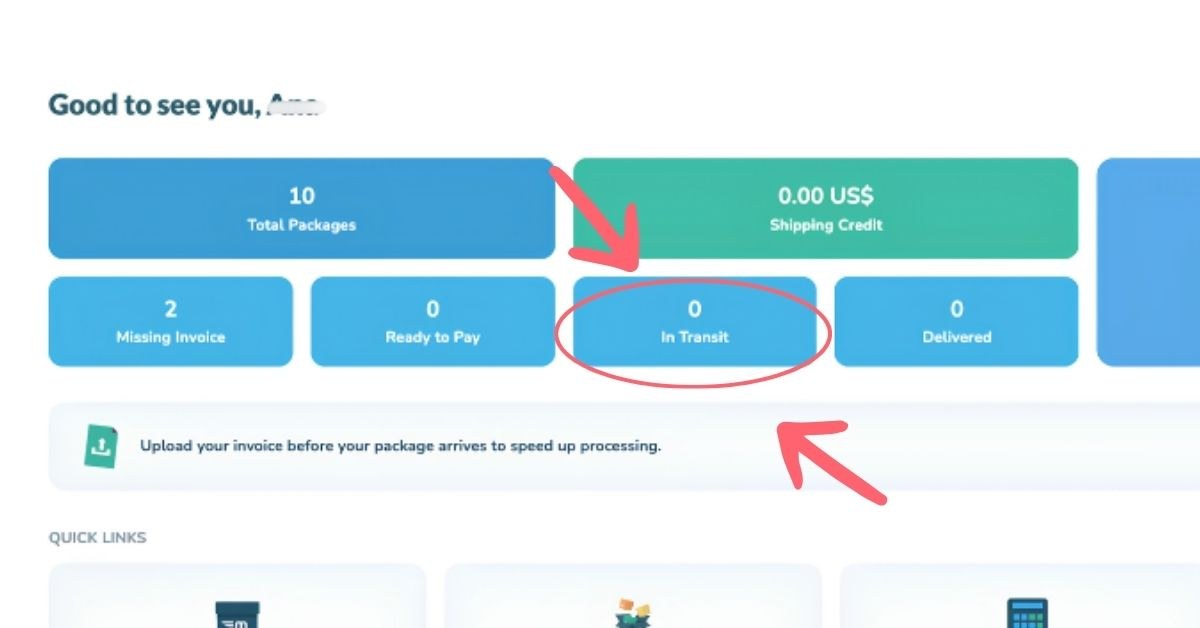
In Transit: this card counts packages that have already left our warehouse and are on their way to you.
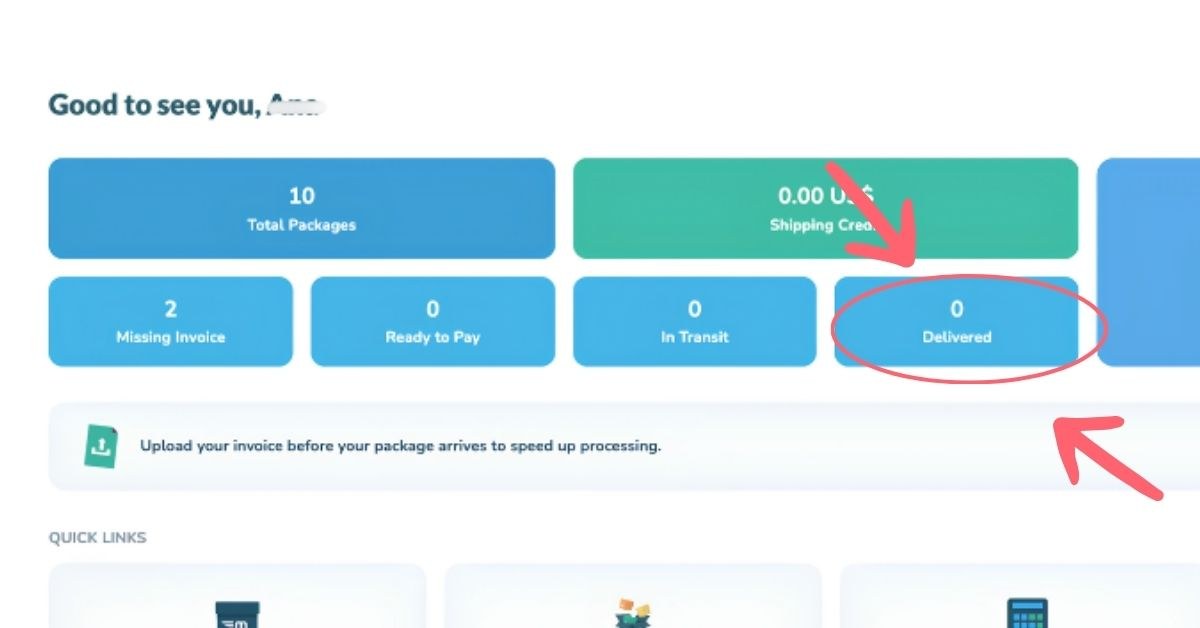
Delivered: this card counts packages that have already arrived safely at your address.
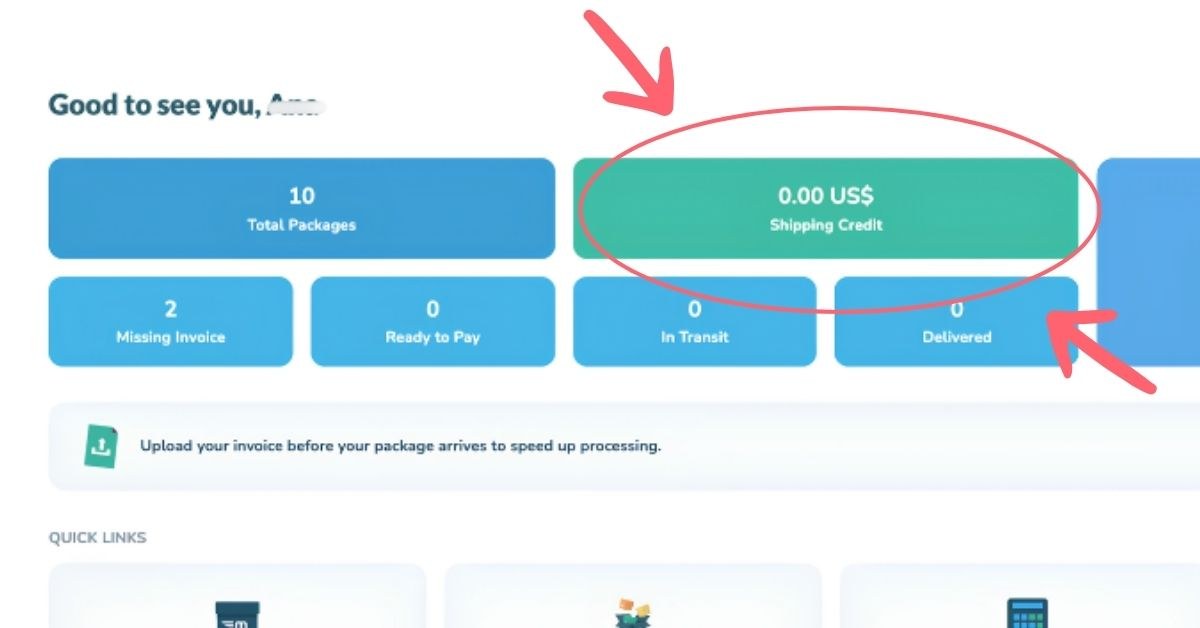
Shipping Credit: this card shows any credit balance on your account that you can put toward your next shipping payment
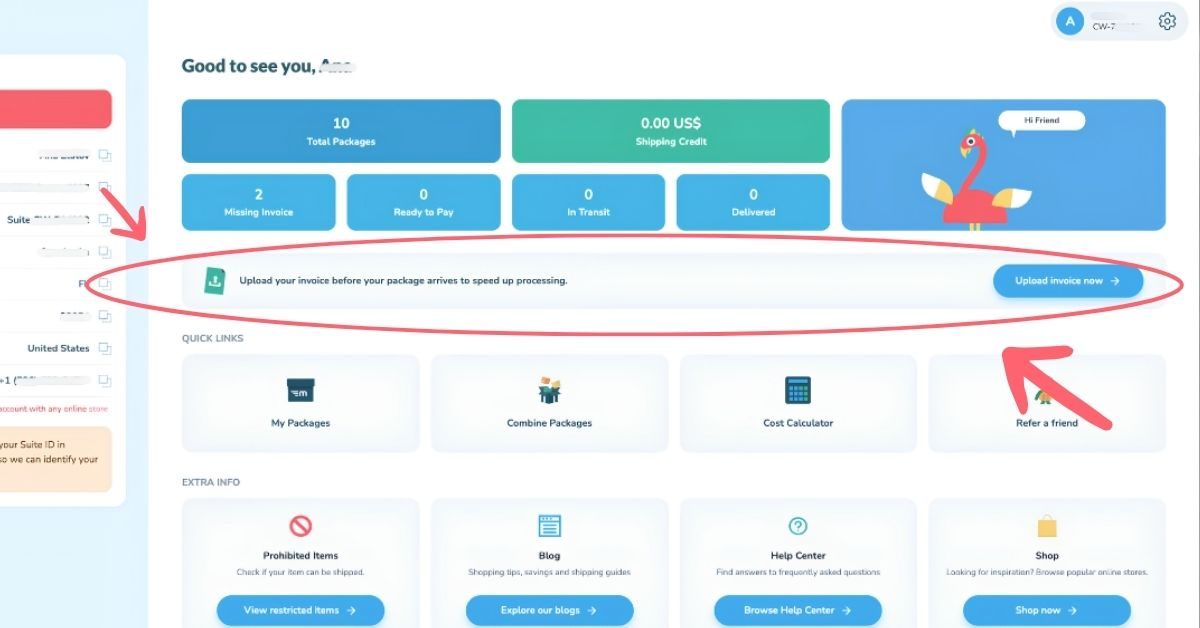
Upload your invoice for faster processing
Uploading your invoice is the single most useful thing you can do after a purchase. It tells our warehouse exactly what's inside, so we can process it faster and more accurately. Upload your invoice before your package arrives so it's ready for immediate processing when we receive it.
Quick Links: Your Most Used Tools in One Tap
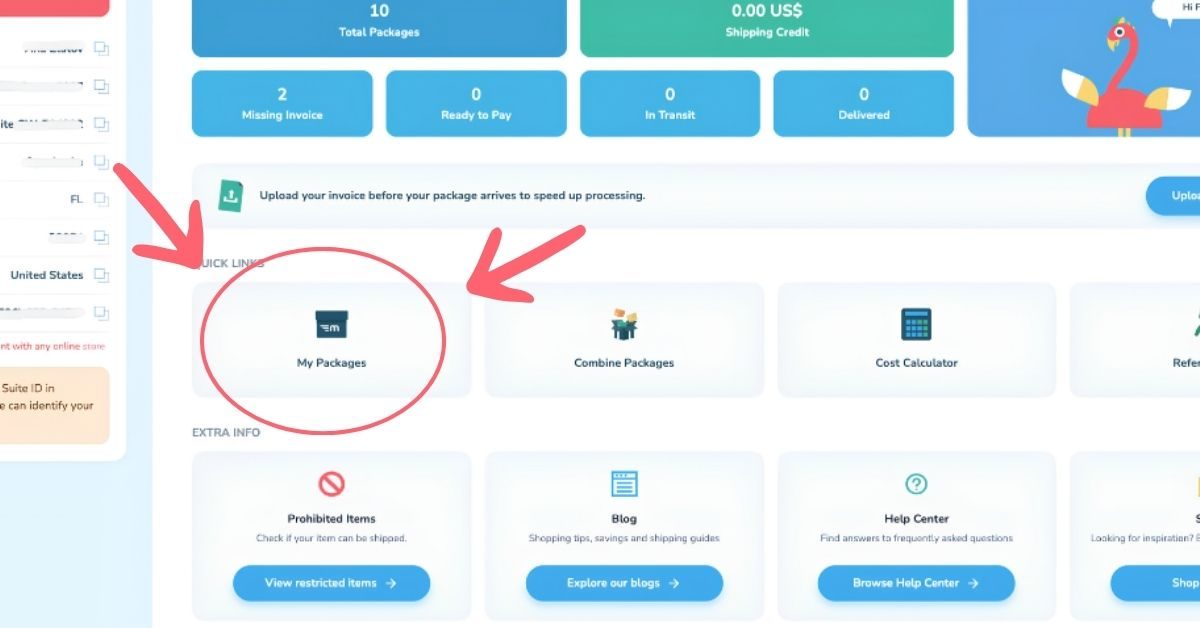
My Packages: this tool takes you straight to your full list of packages, where you can see tracking details, statuses, and history for everything you have shipped.
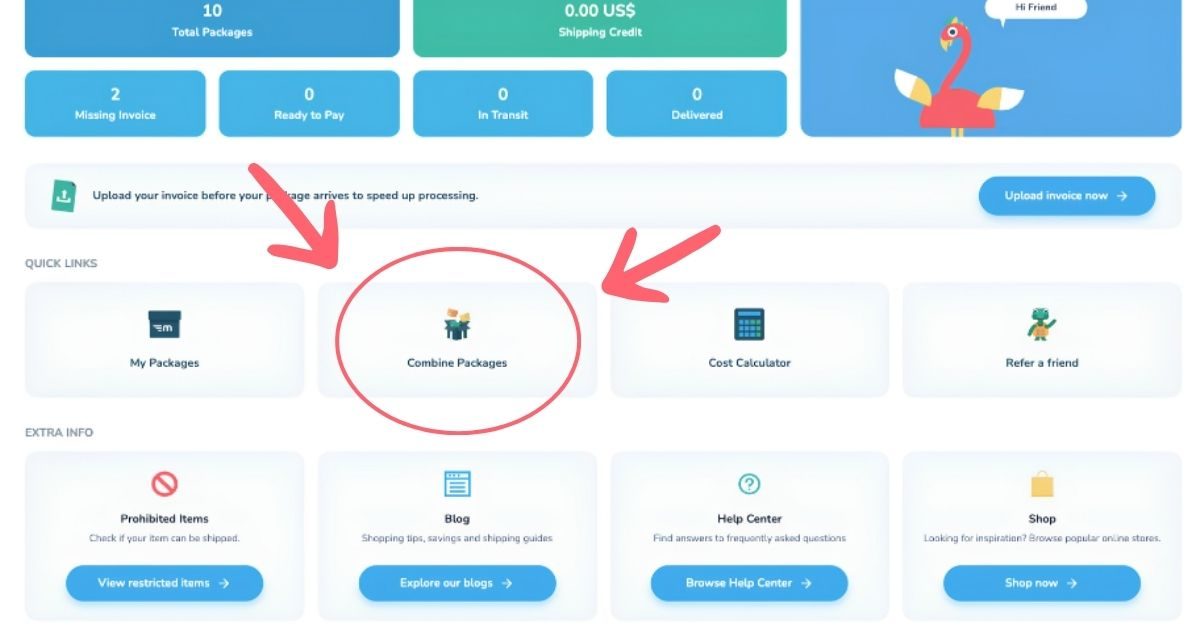
Combine Packages: Combine eligible packages into one shipment and repack them to help save on shipping costs
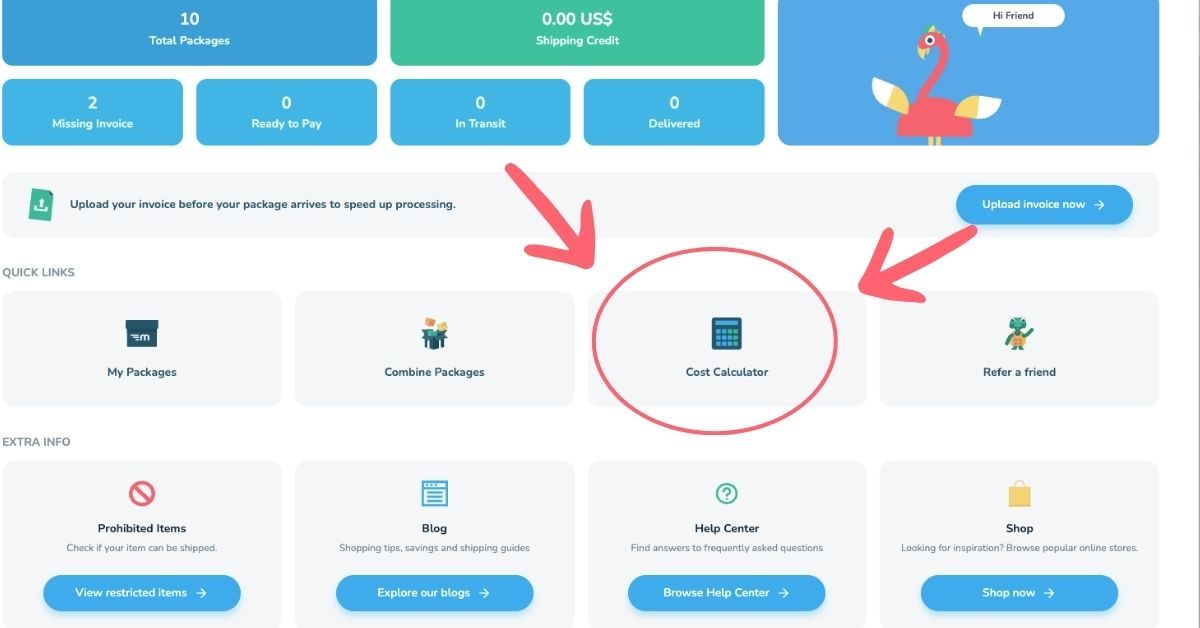
Cost Calculator: this tool gives you a shipping cost estimate before you decide to ship, which helps you plan ahead and avoid surprises.
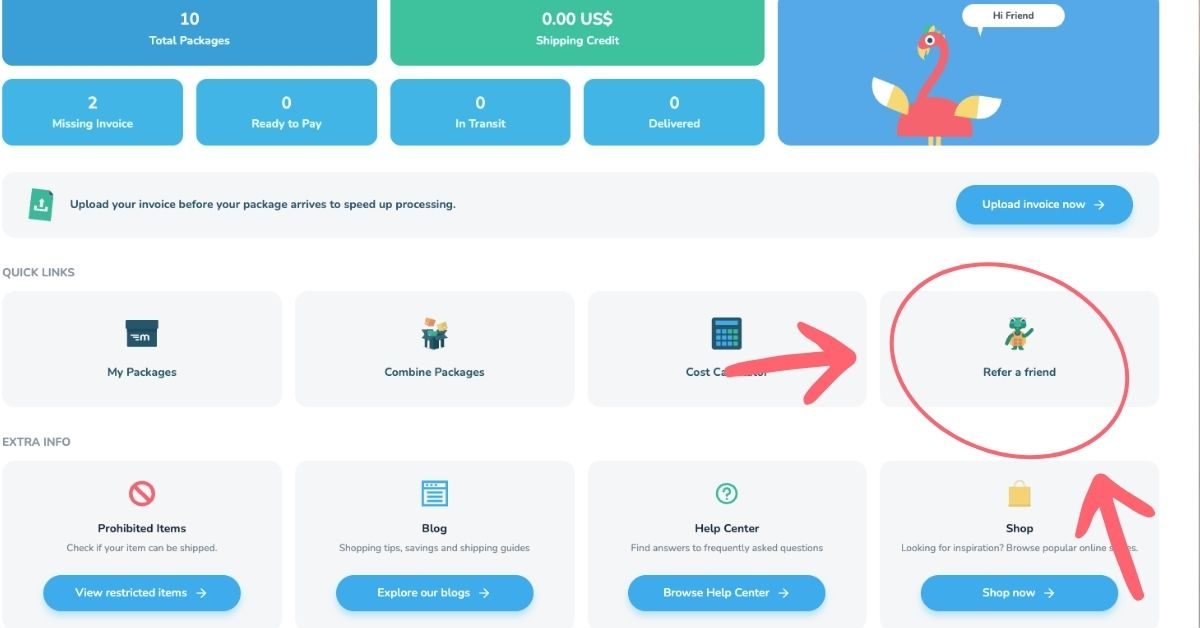
Refer a Friend: this tool lets you share MyMalls with friends and family, and you can earn rewards when they join and ship with us.
Extra Info: Help Whenever You Need It
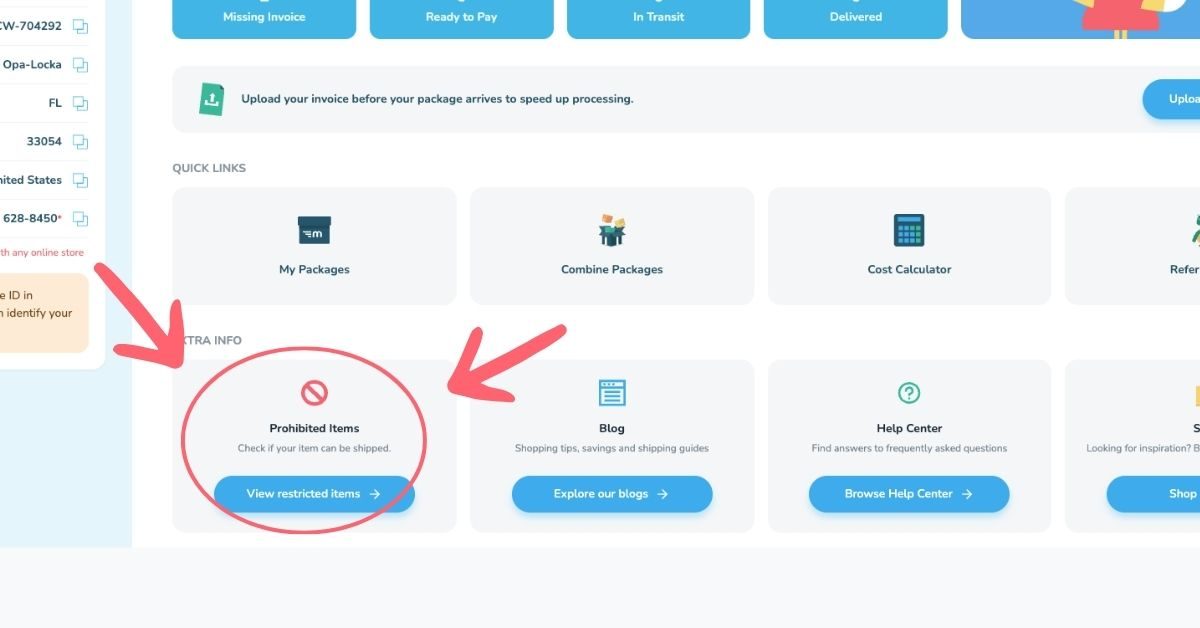
Prohibited Items: this resource lets you check if an item is allowed to ship before you buy it, which can save you time and money by helping you avoid ordering something we cannot send.
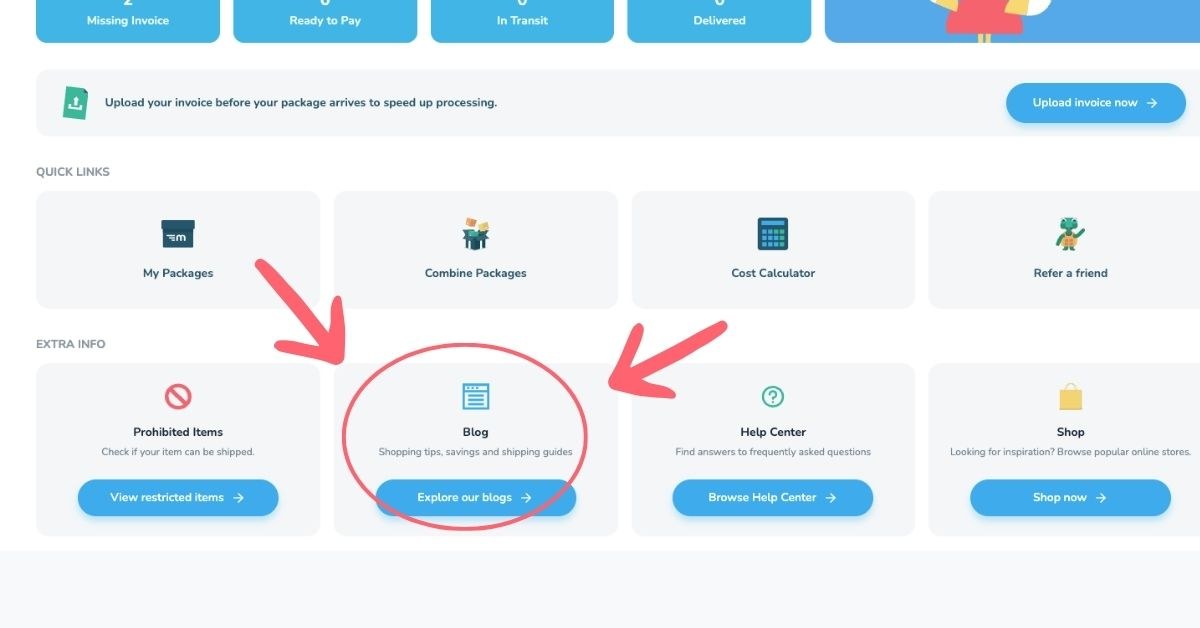
Blog: this resource has articles about shopping tips, saving money, and how shipping works, and it is a great place to learn how to get the most out of MyMalls.
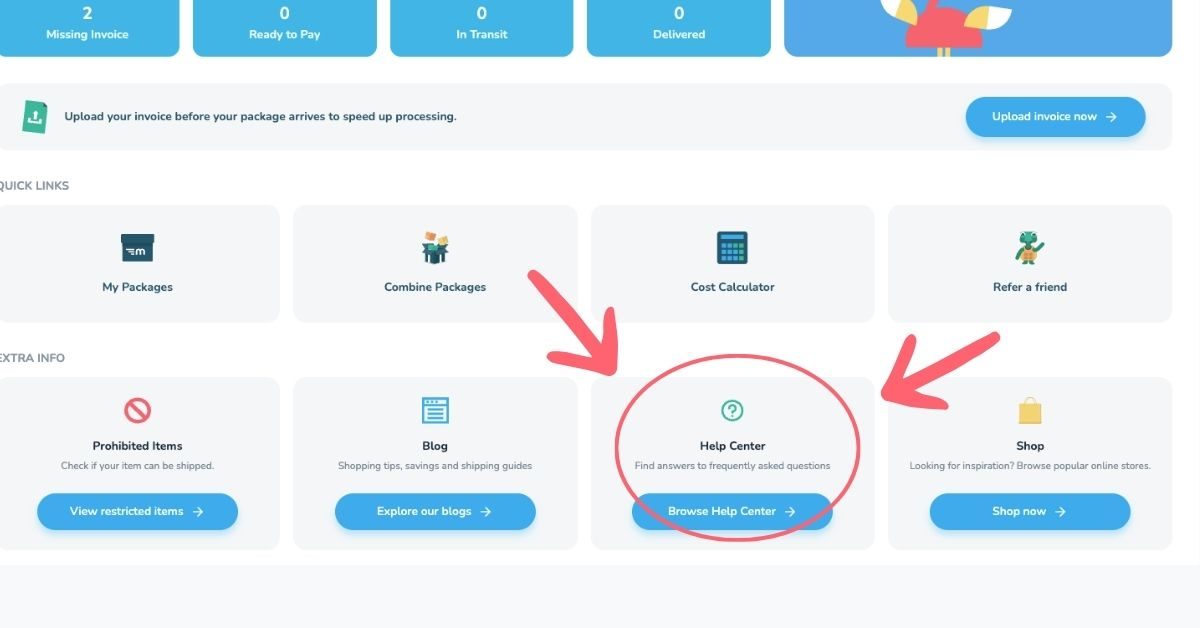
Help Center: this resource answers common questions about your account, your packages, and how MyMalls works, so you can solve a problem quickly without waiting for a reply
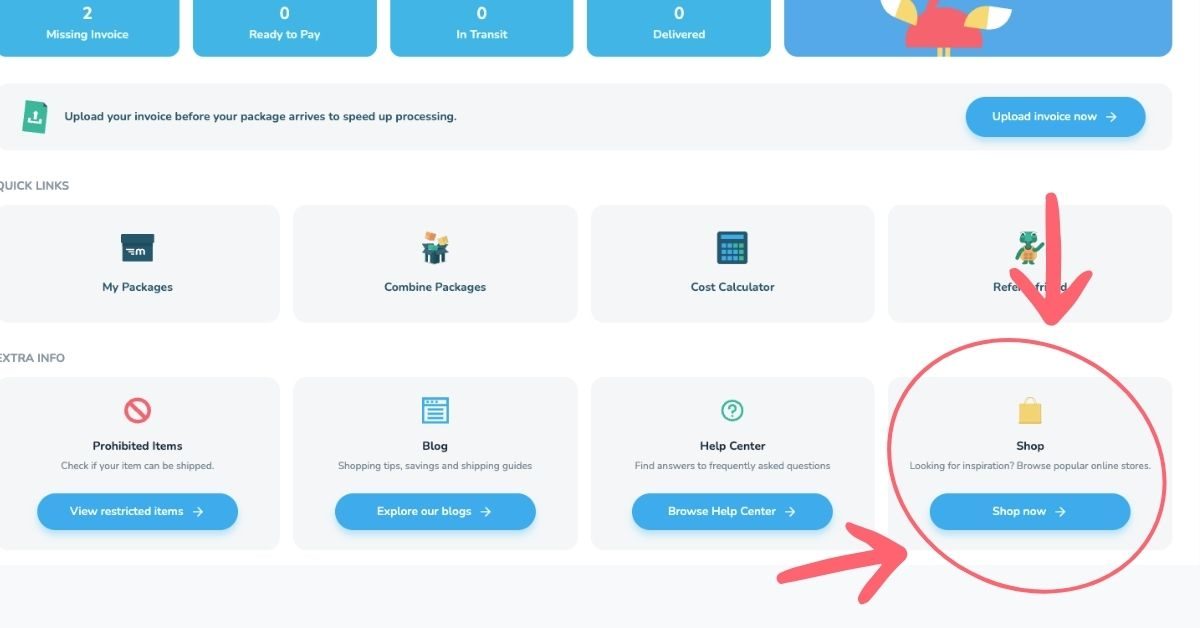
Shop: this resource shows popular online stores you can shop from, which is a great place to start if you are looking for new ideas.
Your Account Menu
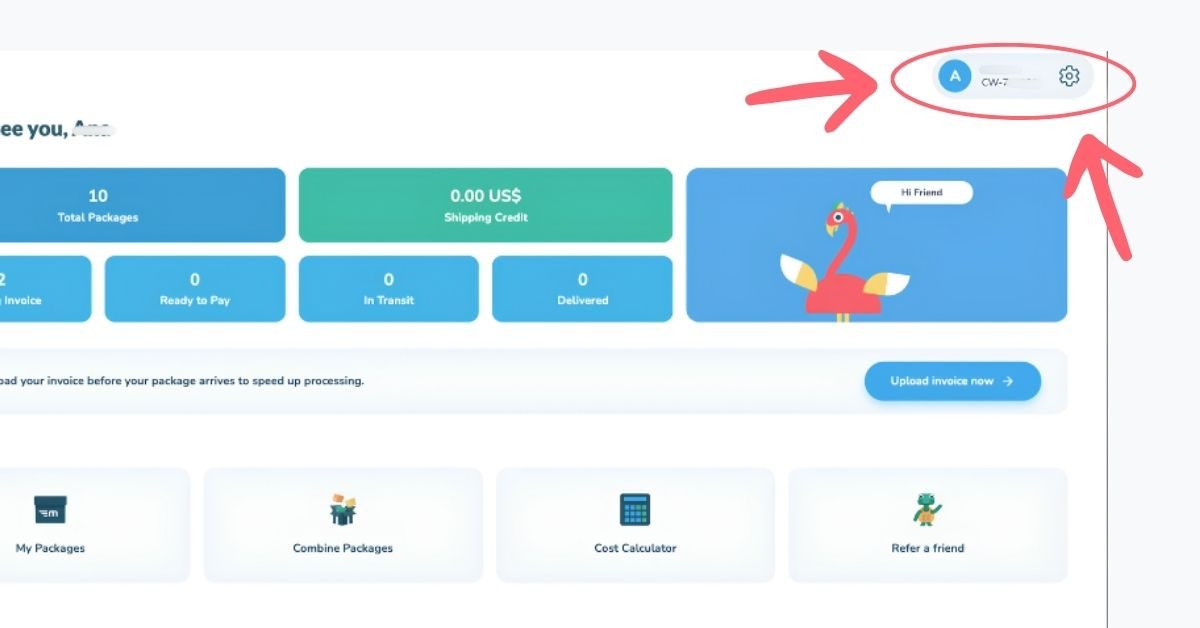
Tap your name in the top right corner of your dashboard to open your account menu. This menu holds settings and tools that help you manage your whole account in one place.
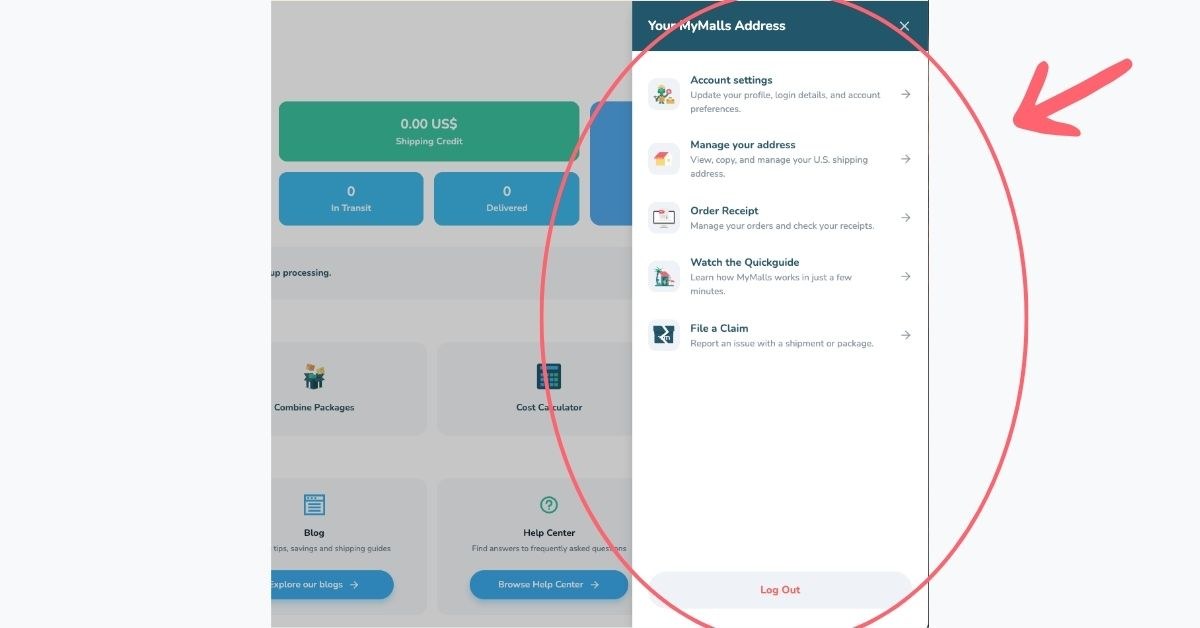
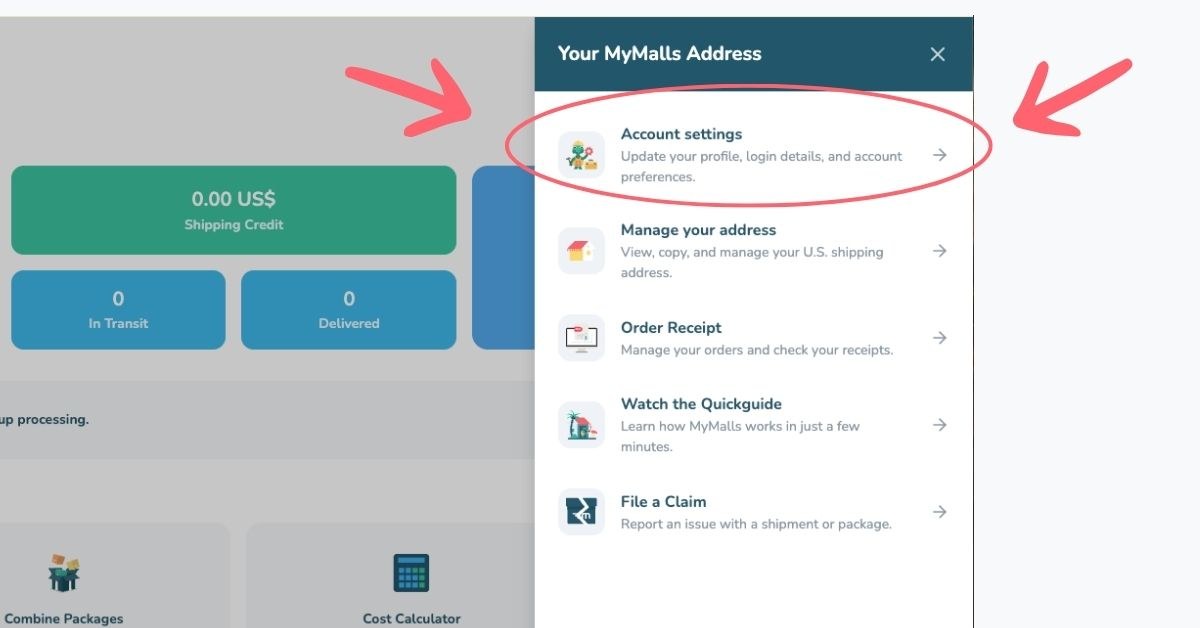
Account settings: this option lets you update your profile, your login details, and your account preferences.
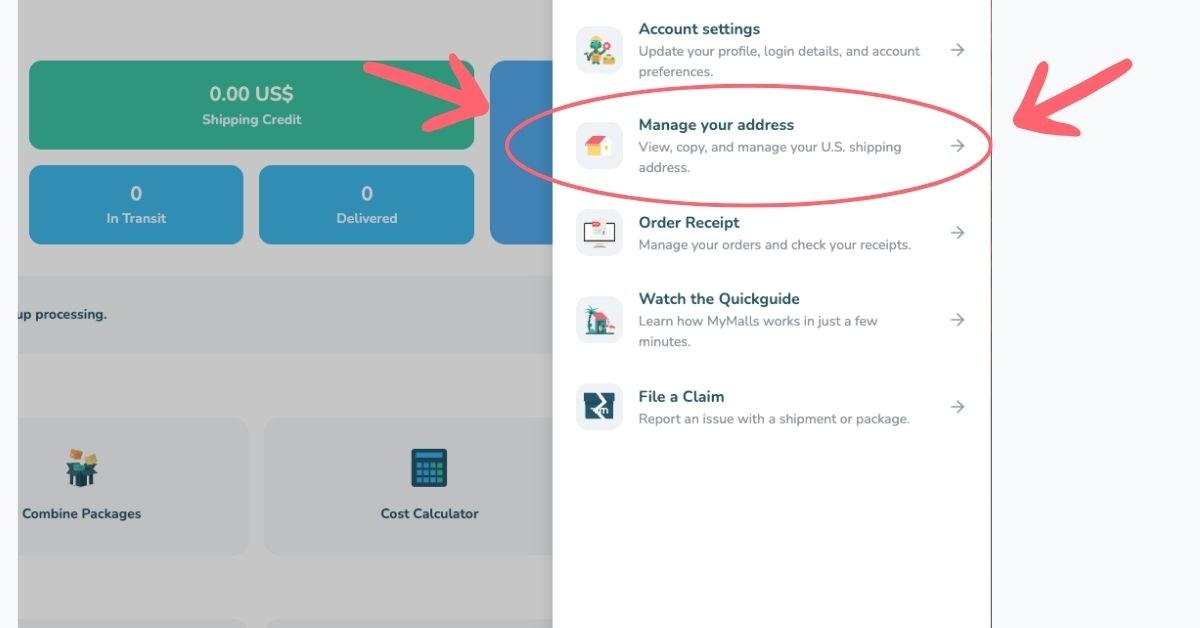
Manage your address: this option lets you view and update the personal address where you want your packages delivered once they leave our warehouse.
Order Receipt: this option lets you manage your orders and check your receipts whenever you need them.
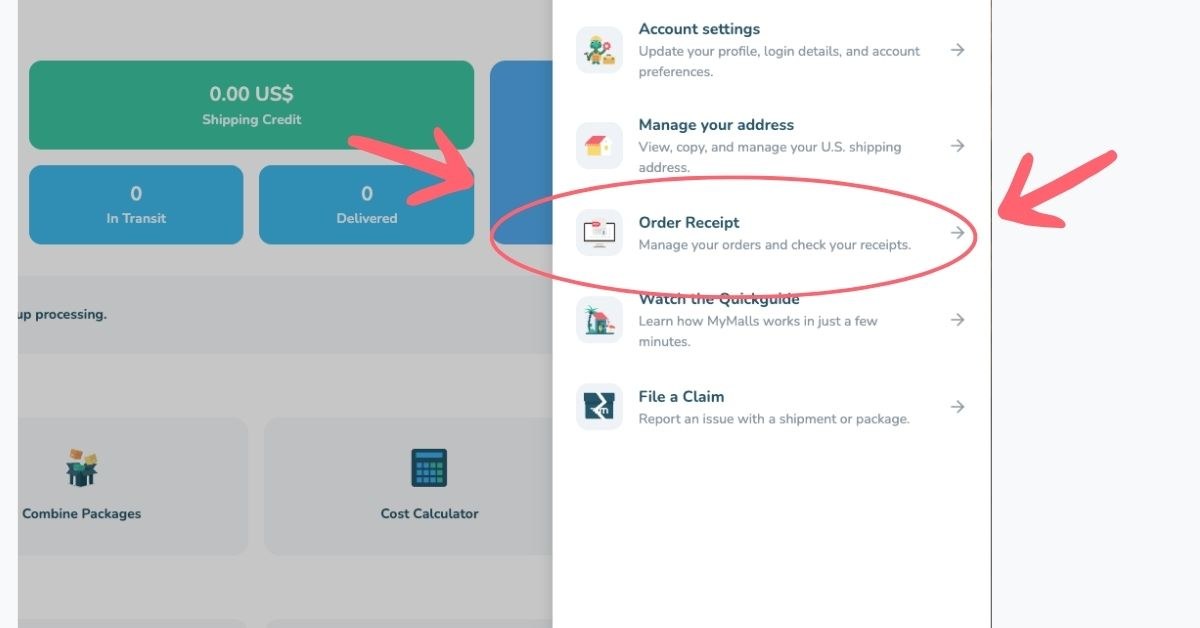
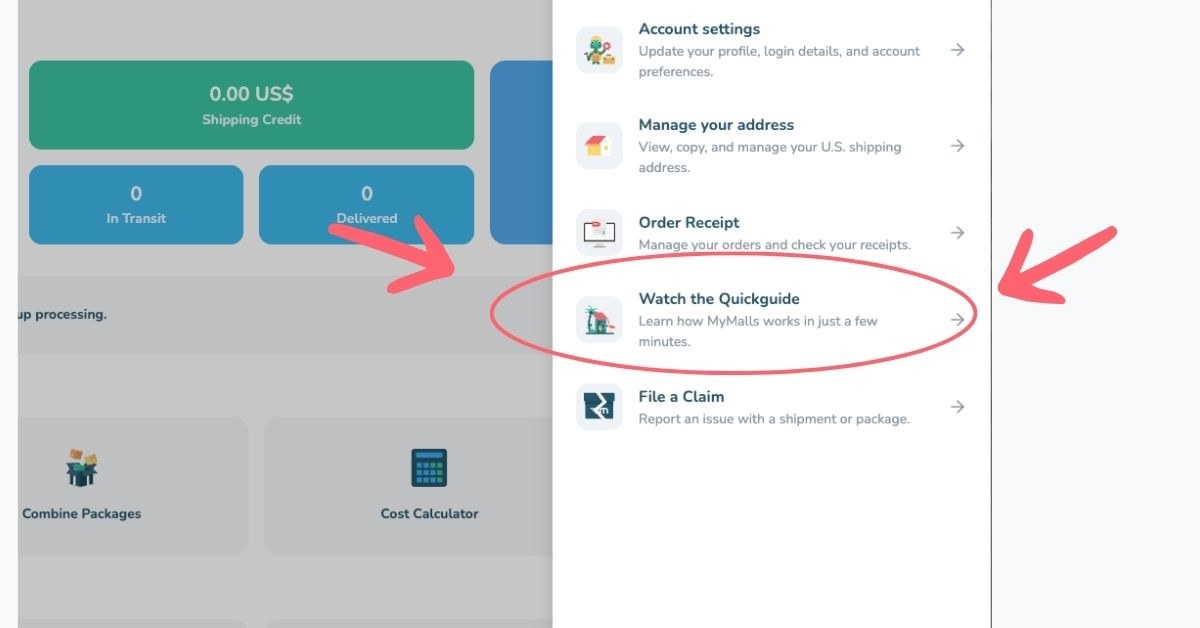
Watch the Quickguide: this option opens a presentation that teaches you how MyMalls works in just a few minutes.
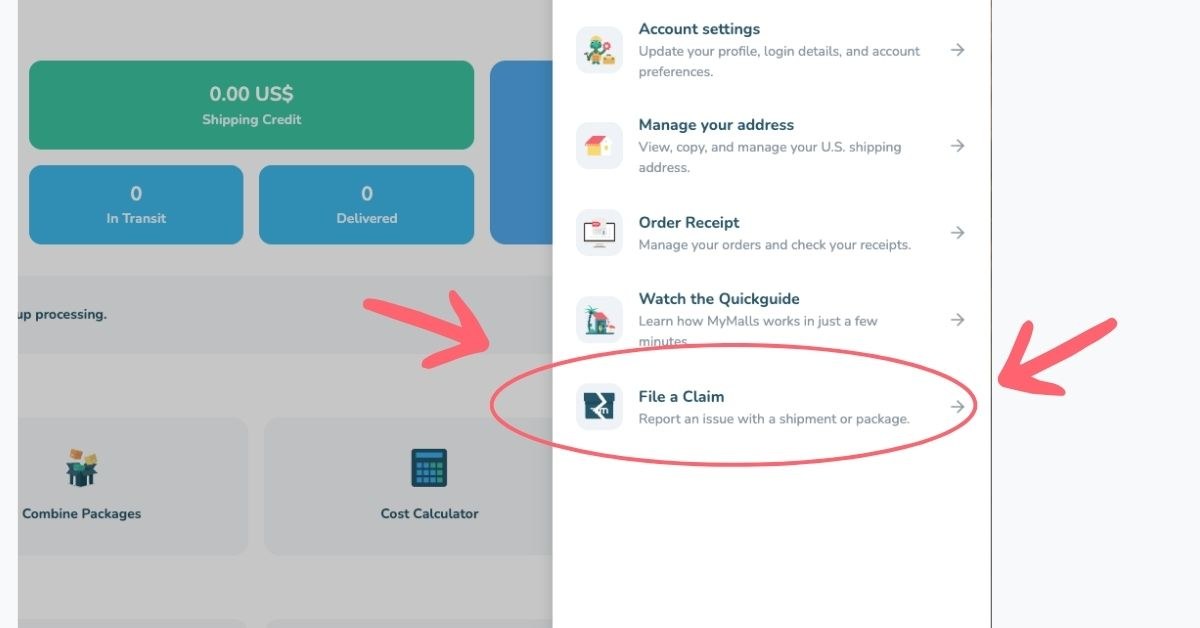
File a Claim: opens a chat with our customer service team so you can report a problem with a shipment or package and get help right away.
Frequently Asked Questions (FAQs)
Q: Do I have a new U.S. address?
A: No. Your address and Suite ID stay exactly the same. Only the dashboard around it changed.
Q: Where do I upload my invoice?
A: You can upload it from the invoice banner on your dashboard, or from My Packages.
Q: Can I still combine packages from the dashboard?
A: Yes! Use the Combine Packages quick link to put several shipments together and save on shipping.
See It for Yourself
Log in today and check out your new dashboard. Everything you need is in one place, ready whenever you are.


Ready to get started?
It’s never been easier to shop in all the online stores, just as if you lived in the US or Europe.